

Bulk Actions lets you tag, transfer, set a reminder on, or close several Inbox conversations at once. This guide shows you how to select conversations and use each action.
Before you start
You need access to the profile of every conversation you want to update.
A selection can include conversations from more than one profile.
The same choice applies to every selected conversation. For example, all of them get the same tags or the same close outcome.
Select conversations
Open your Inbox.
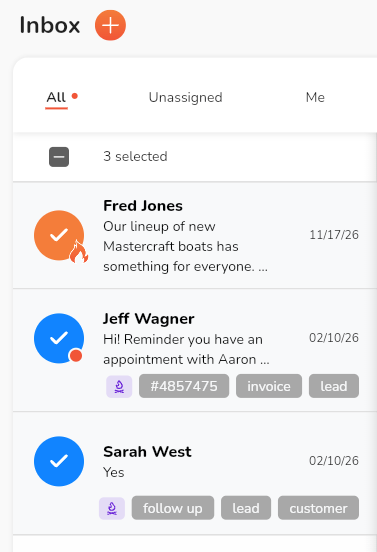
Select the initials circle to the left of a conversation's name. It changes the initials to a checkmark.
Repeat for each conversation you want to include.
Check the counter at the top of the list. It shows how many conversations are selected, for example 2 selected.
Once conversations are selected, the panel on the right reads Select an action for [number] conversations and shows four buttons: Tag, Transfer, Set Reminder and Close Lead.
To remove a conversation from the selection, select its checkmark again. You can also remove all checkmarks by selecting the - in the box next to the total selected.
Bulk Actions
These are the actions you can take on several conversations at once: Tag, Transfer, Set Reminder and Close Lead. Each one works the same way it does on a single conversation, but applies your choice to everything you have selected.
You run one action at a time. To do more than one, such as tagging and then closing, keep the same conversations selected or select them again, then choose the next action.
Tag conversations
Select the conversations you want to tag.
Select Tag.
Choose one or more tags.
Confirm.
The tags are added to every selected conversation. Tags a conversation already has stay in place.
Transfer conversations
Select the conversations you want to move.
Select Transfer.
Choose the profile to move them to.
Optional: choose a user in that profile to assign the conversations to.
Confirm.
Every selected conversation moves to the profile you chose.
Set a reminder
Select the conversations you want to be reminded about.
Select Set Reminder.
Choose when the reminder should fire: 1 Hour, 4 Hours, 24 Hours, or a custom day and time.
Confirm.
Each selected conversation gets the same reminder. When it fires, those conversations turn green and move toward the top of your Inbox, and you get a push notification on mobile.
Close leads
Select the conversations you want to close.
Select Close Lead.
Choose an outcome: Won, Lost or Other.
Optional: add a note.
Confirm.
Every selected conversation is closed with the same outcome and note. If the leads had different outcomes, close them in separate batches, one batch per outcome.
What happens after a bulk action
Your team sees the changes right away. Updates sync in real time to teammates on web and mobile, the same as when you update one conversation.
Zapier triggers still fire. A Zap that runs when a conversation is tagged, transferred or closed runs once for each conversation in the batch.
Each conversation is updated on its own. If one conversation cannot be updated, the others still go through.
Troubleshooting and common questions
Nothing changed when I ran a bulk action. Leadferno checks the whole selection before it changes anything. If the selection includes a conversation in a profile you cannot update, or one that no longer exists, no conversations are changed. Remove that conversation from the selection and try again.
Some conversations updated and others did not. After the first check, each conversation is processed separately. Select the ones that did not update and run the action again.
Can I select conversations from different profiles? Yes, as long as you have access to each profile.
Can I give each conversation a different tag, outcome or reminder time? Not in one action. Run a separate bulk action for each group, or update those conversations individually.