

What Reminders do
Reminders bring a conversation back to the top of your Inbox at a day and time you choose, so a lead you are waiting on never slips out of view.
You can set a Reminder on any thread you have access to. When it goes off, the thread moves to the top of your conversation list and turns green so you know it needs attention. On mobile you also get a push notification.
Use a Reminder whenever you know a conversation will need you again later:
A customer said they would get back to you by a certain day (“Let me get back to you this weekend”).
You are waiting on a step on their side, like a deposit, a signature or a decision.
A quote, invoice or appointment needs a follow-up check.
You want to touch base with a quiet lead before it goes cold.
Setting a Reminder
Setting a Reminder takes two clicks: open the thread, click the bell, pick a time.
From inside a thread
Open the conversation.
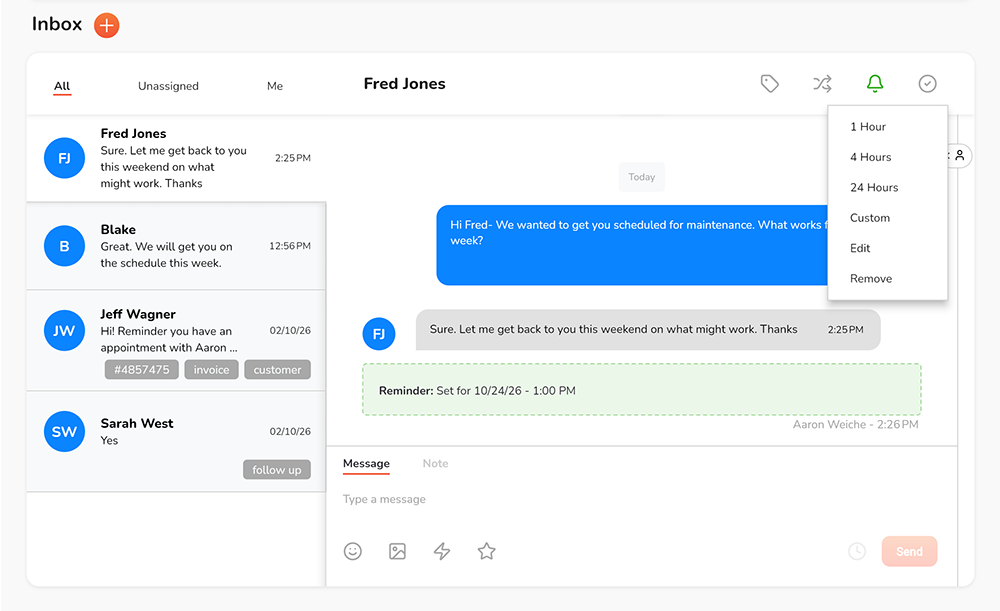
Click the bell icon in the top-right of the thread, next to the tag and assign icons.
Choose a preset or a custom time (see below).
A green “Reminder: Set for …” note appears in the conversation with the date, time and who set it, and the bell turns green while the Reminder is active.
From the thread list
You can also set a Reminder straight from the conversation list on the left, without opening the thread. Hover over the thread and use the bell from there.
Choosing a time
Presets are quick for same-day follow-ups. Use Custom when the customer gave you a specific window, such as “after the 15th” or “Monday morning.” Your options are:
1 hour - fires one hour from now
4 hours - fires 4 hours from now
24 hours - fires this time tomorrow
Custom - Pick any day and time in the future
What happens when a Reminder goes off
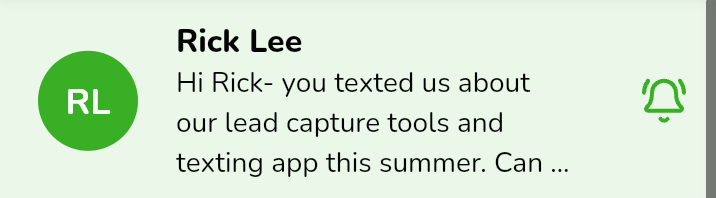
When the time arrives, the thread jumps to the top of your conversation list, above all open threads (blue), but still below any new leads (orange). The thread elements all turn green.
Changing or removing a Reminder
Click the bell on any thread with an active Reminder to change or clear it.
Edit — pick a new preset or custom time. The existing Reminder is replaced; you do not need to remove it first.
Remove — clears the Reminder. The thread stays where it is and nothing fires.
Each thread holds one Reminder at a time. If plans change, just edit the time rather than setting a second one.
Tips
Set it the moment the customer names a time. When someone says “I’ll let you know Friday,” set a Custom Reminder for Friday afternoon before you move on.
Give yourself a buffer. If they promised to call by noon, remind yourself at 1:00 PM so you only follow up if they haven’t.
Pair it with a Note. Add an internal Note on the thread about what you are waiting for, so when the Reminder fires you know exactly what to say.
Use it after sending quotes or invoices. A 24 Hour or 2-day Reminder is an easy nudge to check whether they had questions.
Turn on mobile notifications. Push alerts mean a fired Reminder reaches you even when the app is closed.
FAQ
Can I set a Reminder on a thread assigned to someone else? Yes. You can set a Reminder on any thread you have access to.
Does the customer see the Reminder? No. Reminders are internal. The green “Reminder: Set for …” note is visible only to your team, not in the text conversation the customer receives.
Can a thread have more than one Reminder? No, one at a time. Use Edit to change the time.
What if I’m not logged in when it fires? The thread is still moved to the top and marked green, so it is waiting for you the next time you open your Inbox. On mobile you also get a push notification.
Will a fired Reminder sit above new leads? No. New leads (orange) always stay on top. Fired Reminders (green) come next, ahead of all other open threads (blue).
Does closing the thread clear the Reminder? If you no longer need the follow-up, remove the Reminder before closing so it does not bring the thread back later.