

Mark as spam allows you to block messages from coming to your Inbox. If the text message arrive from Leadform, Leadbox, or direct SMS, using the Spam option will block any additional messages from arriving to your Inbox, archiving the message from view.
Block contacts
To mark as spam:
Select the close conversation icon (checkmark).
Select from the Other button the dropdown option Spam. On a mobile device, you'll see the Spam option in the close drawer.
Once marked as spam, the conversation will display a Marked as Spam event. The prospect will be blocked from sending you additional messages.
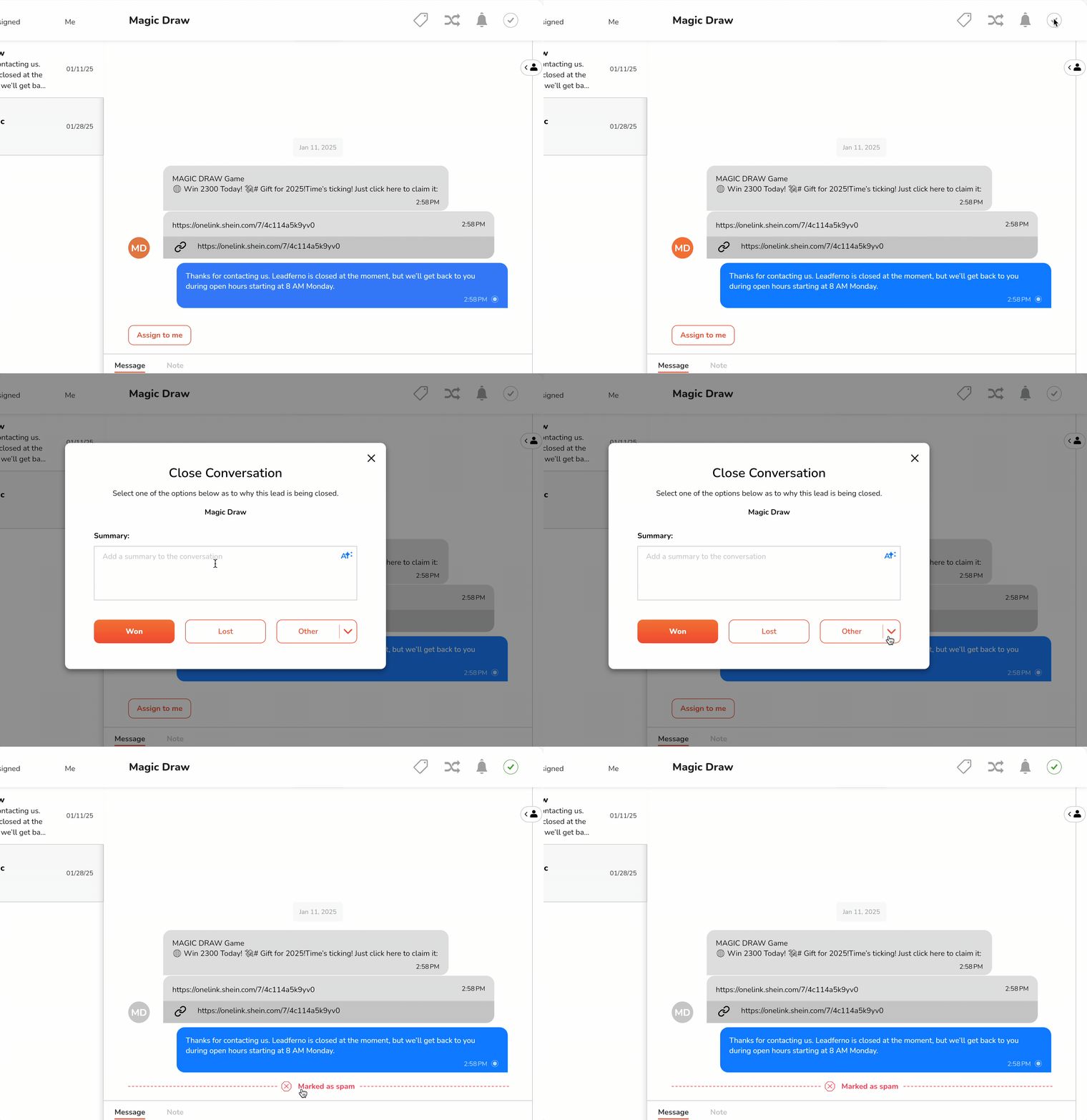
If the thread was marked incorrectly, simply select the red event in the thread to mark as not spam.
Searching contacts
By default, spam threads and contacts do not show in the Inbox or on the Contacts screen.
To view blocked contacts, select the advanced filter icon from the search box in the web app and select either All or Blocked to view blocked contacts under the option Contact State.
To mark as not spam from the contact screen, open the thread under Contact > History > View conversation to open the thread and select the Mark as Spam indicator in the thread conversation.