

Overview
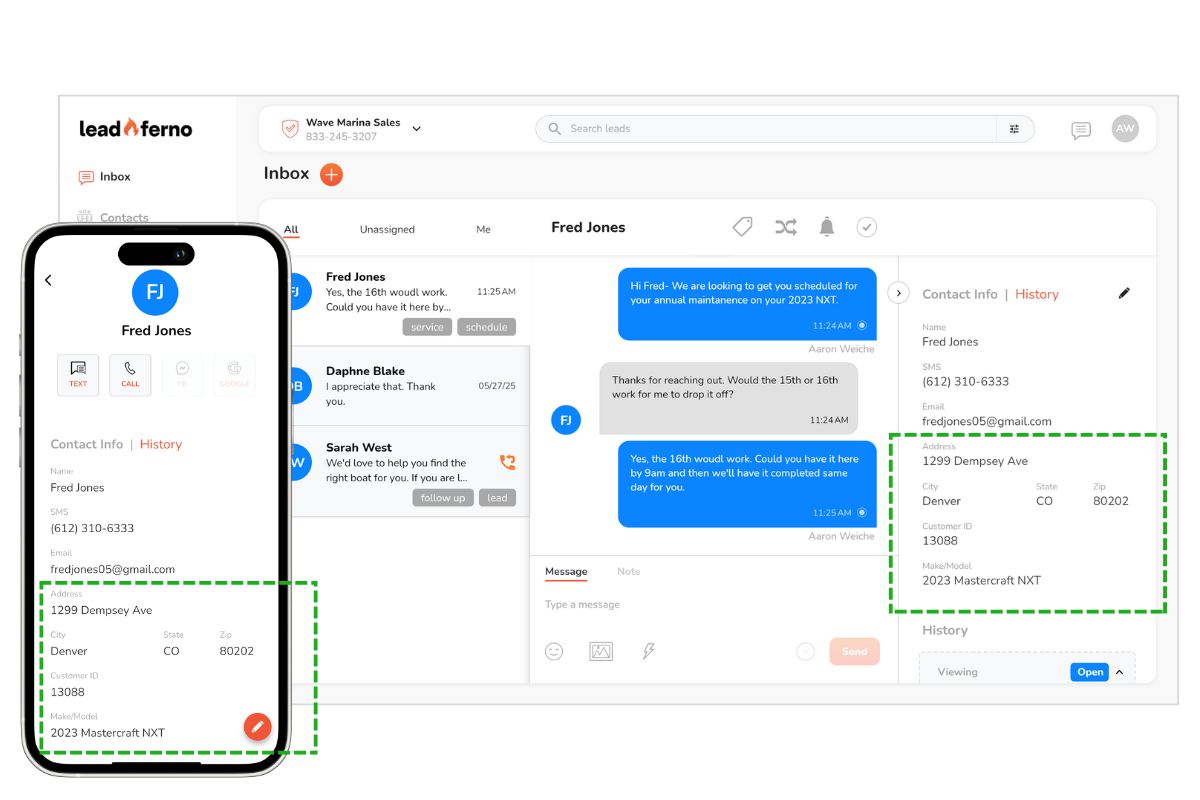
You can now add an address field and up to five customizable fields to each contact record, making your Leadferno contacts smarter and tailored to your workflow.
Why Use Custom Fields?
Every business is unique, and the details you track may vary by industry or service. Custom Fields help you:
Personalize customer records with key data.
Improve team communication by keeping important details visible.
Automate workflows by mapping Leadform submissions directly to fields.
Default & Custom Fields Available
Name
Phone/SMS
Email
Address Field: Store street, city, state, and ZIP code (in addition to name, phone, and email).
Custom Fields (up to 5): Create your own labels (20-character limit) and decide what data to capture.
Examples of how businesses use Custom Fields:
Customer ID or Account Number
Order Number
Service Type (roofing, siding, pest control, etc.)
Important Dates (birthdays, service dates)
Loyalty Tier or Preferences
Customer notes
How to Add or Manage Custom Fields
Go to the Contacts page in the Leadferno web app.
Click the gear icon (upper right corner).
Select Add Field or drag and drop a field type from the options on the right.
Enter a label (max 20 characters).
Choose:
If the field appears in the Contacts table.
If the data is sortable in the table.
Drag and drop fields (using the ::: icon) to set the order they appear in the contact details panel.
You can create up to five custom fields.
Mapping Custom Fields to Leadforms
Custom Fields can be mapped directly to Leadform submissions so data is automatically stored in the right place.
Make sure your Custom Fields are already created.
Go to your Leadform and select the Field Mapping tab.
Choose the mapping option and click the connect icon (orange = connected).
Example: A Leadform asks for “Date of Birth.” When mapped, the response automatically fills the “Birth Date” Custom Field on the contact record.
Real-World Use Cases
Moving company → Capture move date from a Leadform and save it as a custom field for scheduling.
Support team → Collect Order ID for quick look-ups in past conversations.
Med spa → Store loyalty tier or birthdate for personalized promotions.
Contractor → Track service type (roofing, siding, windows) for better lead segmentation.
Best Practices
Keep field names short and clear.
Standardize field use across your team.
Periodically review and clean up unused fields.
Summary
Custom Fields give you flexibility to store the details that matter most to your business. From IDs and service types to dates and preferences, you can build more complete customer records and connect Leadform data directly into your workflows.
👉 To get started, head to your Contacts page → Settings (gear icon) and set up your custom fields today.